Dokumenten Management Modul
Oh wow, wir haben es bis zu unserem Dokumenten Management geschafft! Das Dokumenten Management wird sicher einige sehr bekannte Funktionalitäten enthalten, aber auch ein bisschen Neues. Schauen wir gleich mal rein!
Übersicht und Navigation im Baum
Das Dokumenten Modul ermöglicht es dir, Dokumente und Templates zu organisieren.
Alle Ordner werden in einer Baumansicht angezeigt - das ist dir wahrscheinlich schon bekannt, es sind einfach Ordner (und Unterordner (und Unter-Unterordner (und Unter-Unter-Unterord... ihr weißt schon, wie das geht))).
Wenn du den Baum nicht siehst, klicke einfach auf den grauen Button, um ihn auszuklappen!
Der wichtigste Unterschied in unserem System liegt zwischen Dokumenten und Templates. Während Dokumente zum Beispiel TD Dokumente mit spezifischen Produktdaten oder QM Aufzeichnungen sind, sind Templates genau das - Vorlagen. Sie enthalten keine Daten, sondern bieten nur Platzhalter. Deshalb haben wir auch ein ausgefülltes lila Icon für unsere Dokumente gewählt und ein leeres für unsere Templates.
Wenn du dich nicht mehr erinnerst, wo deine Templates oder Dokumente sind, kannst du einfach die Suchleiste verwenden.
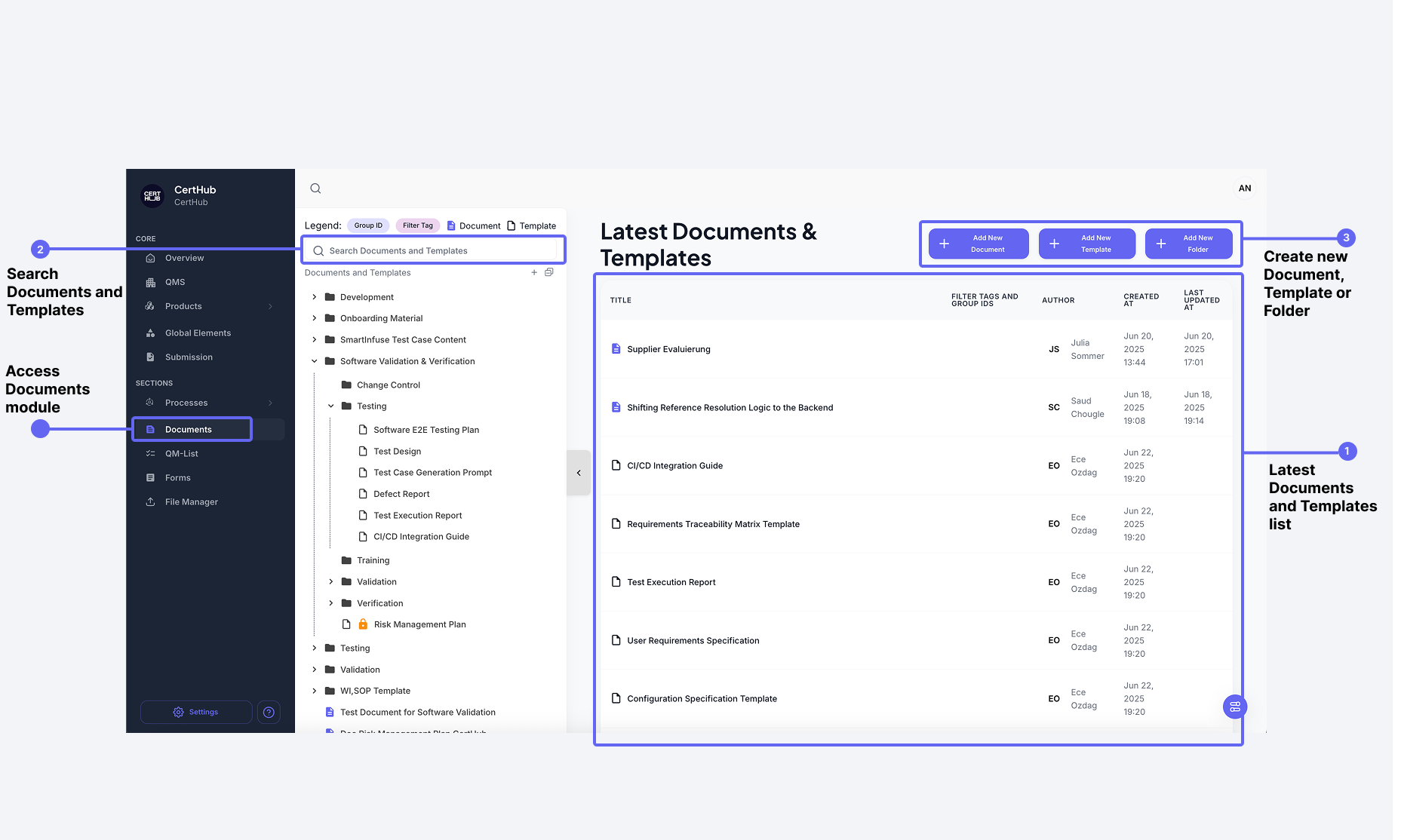
Suchfunktionalität
Übrigens, wenn du kein Doc/Temp ausgewählt hast, siehst du eine Liste von "kürzlich geöffneten" Docs/Temps wie im Bild oben.
Deine Suche wird abgeglichen mit
- Ordnernamen
- Dokument/Template Namen
- Abkürzungen, die für das spezifische Dokument/Template gesetzt wurden
Ordneraktionen
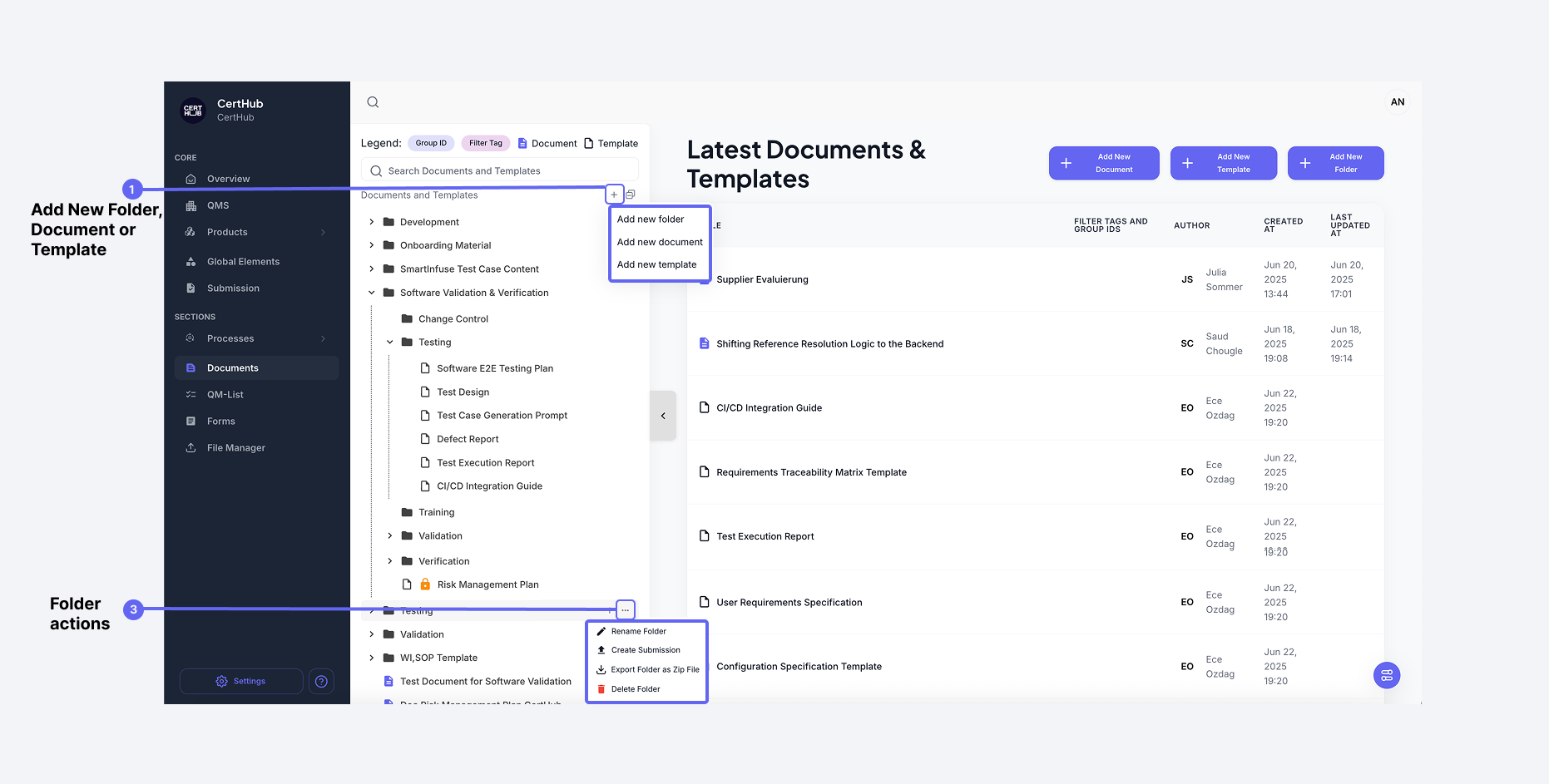
Du kannst folgende Aktionen auf Ordnern durchführen:
- Erstellen: Verwende das "+" Icon oben in der Liste oder neben jedem Ordner, um neue Ordner, Dokumente oder Templates hinzuzufügen.
- Umbenennen: Verwende das ✏️ Icon neben dem Ordner, um ihn umzubenennen.
- Löschen: Verwende das 🗑️ Icon, um einen bestimmten Ordner dauerhaft zu entfernen, zusammen mit allen Items darin. ⚠️: Ordner, die gesperrte oder genehmigte Dateien enthalten, können nicht gelöscht werden.
- Als zip exportieren: Verwende das ⬇️ Icon, um den Ordner herunterzuladen. ⚠️: Du bekommst eine Reihe von JSON-Dateien, um die Docs/Temps als PDFs herunterzuladen, verwende bitte den Download-Button im Doc/Temp.
- Submission erstellen: Verwende das ⬆️ Icon, um eine neue Submission aus dem ausgewählten Ordner zu erstellen. ⚠️: Eine Submission enthält nur genehmigte Dokumente (und keine Templates).
- Drag & Drop: Verschiebe Ordner frei in andere Ordner.
✅ Ordner unterstützen unbegrenzte Verschachtelung — organisiere so tief wie nötig.
Dokumenten & Template Aktionen
Du kannst Dokumente und Templates mit folgenden Aktionen verwalten:
- Duplizieren
- Exportieren
- Löschen
- Drag & Drop zwischen Ordnern oder Unterordnern
- Verwende klare, konsistente Benennung, um tief verschachtelte Ordner zu verwalten.
- Ordne mit Drag-and-Drop für eine saubere und logische Hierarchie um.